Appearance
Linked Datasets
Overview
Two datasets can be linked through primary and foreign keys. A primary key is a variable that uniquely identifies each observation in a dataset. A foreign key is a variable that corresponds to a primary key in another dataset. Such links between datasets enable complex data operations like advanced filtering.
In the example below:
PatientIDis the primary key in thePatientsdataset.PatientIDis a foreign key in theLabResultsdataset, linking back to thePatientsdataset.Note:
PatientIDis also a primary key in theLabResultsdataset.
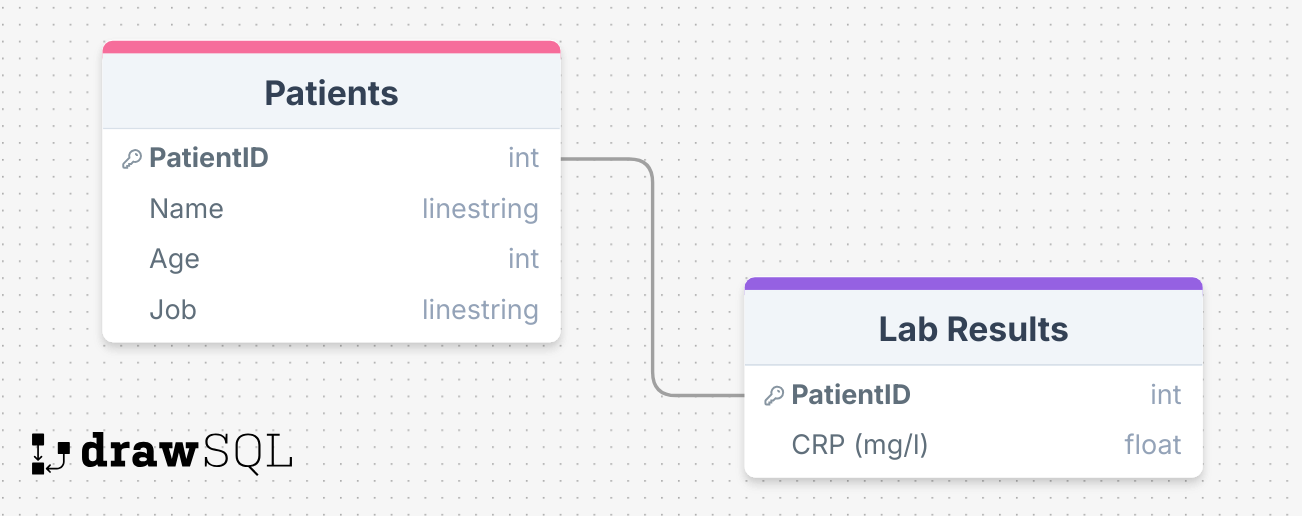
In this case, it could be helpful to filter the Lab Results dataset based on criteria from the Patients dataset. For example, you might want to filter C-reactive protein (CRP) levels based on age or patient occupations.
In Adept, you can achieve this by linking fields between datasets and then using its advanced filter mechanism.
WARNING
You can only link fields from datasets within the same root collection.
Create a linked field
Select the dataset with the field you want to link to a field in another dataset.
Select Settings at the top of the dataset.
Click Add linked field to open the linked fields panel.
Inside of the linked fields panel:
- select the field to link
- select the dataset and the field to link to
Click Add. Your link is listed in the table of linked fields.
WARNING
Links are always uni-directional. Linking field_1 in dataset_1 to field_2 in dataset_2 does not automatically create a link from field_2 in dataset_2 to field_1 in dataset_1.
Delete a linked field
Select the dataset with the linked field to delete.
Select Settings at the top of the dataset.
Find the linked field you want to delete, then click Delete.

